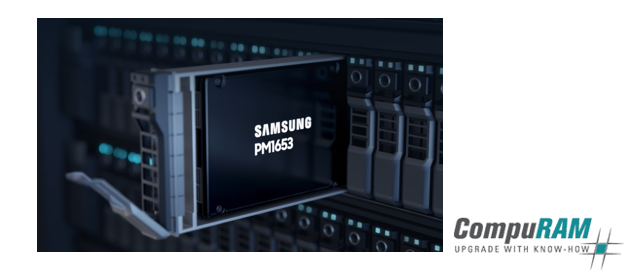
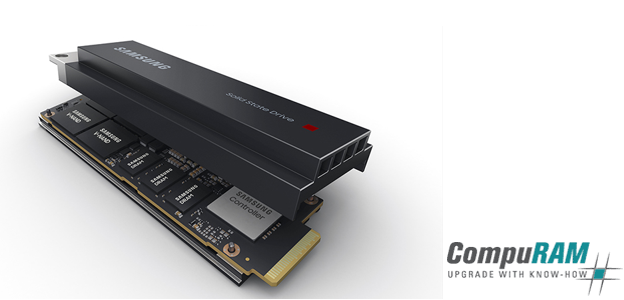
Available at CompuRAM: Samsung Server SSD PM1653 Samsung launches the PM1653, the double-performance successor to PM1643 / PM1643a. News - CompuRAM Redaktion
Samsung Server SSD, but which one? Samsung offers a variety of SSD, but what are the differences? And which SSD is best for which requirements? Our... Know-how - Juliane Fischer
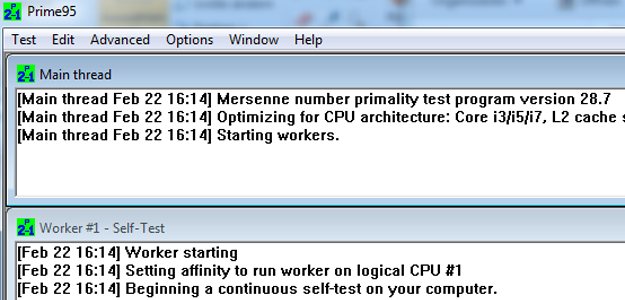
Memory Testing – the possibilities Does your PC sometimes crash? Your memory upgrade apparently didn't work out? You suspect a memory defect? Know-how - Katharina Krug
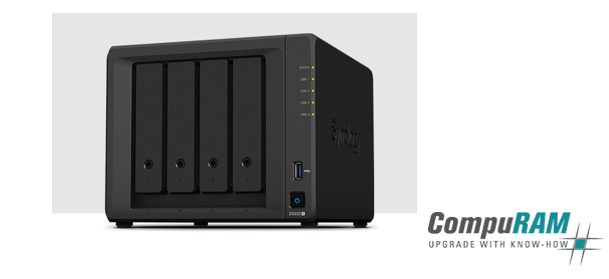
Upgrading Synology NAS Memory – how the RAM Upgrade works Your Synology NAS storage upgrade did not lead to the the expected result? Here you will find troubleshooting tips. Tutorials - CompuRAM Redaktion
RAMinator – your free analysis tool ... provides all system information relevant for a memory upgrade and leads you directly to the matching modules. Tutorials - CompuRAM Redaktion
Troubleshooting Quick Guide: Tricks & tips on problems when installing memory upgrades Your memory upgrade did not lead to the desired result? Here you will find appropriate answers to frequent questions. Tutorials - Tom Bauer
Memory module configurations not recommended by Synology recognised Is your NAS (Network Attached Storage) reporting a non-recommended storage module configuration? Here we explain in detail why there is... Know-how - CompuRAM Redaktion
KIOXIA Server SSD, but which one? KIOXIA offers a variety of SSD, but what are the differences? And which SSD is best for which requirements? Our... Know-how - CompuRAM Redaktion
Available at CompuRAM: Samsung SSD Server PM9A3 E1.S More performance for your applications: Samsung Enterprise Datacenter SSDs for processing intensive workloads in servers and data centers. News News - CompuRAM Redaktion
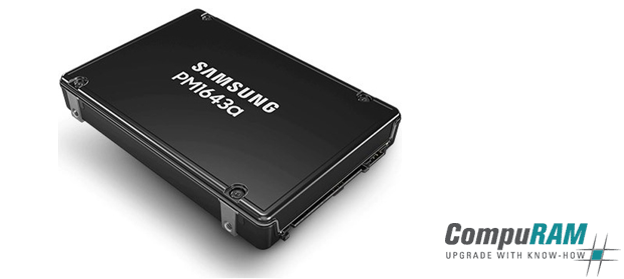
Available at CompuRAM: Samsung Server SSD PM1643 > PM1643a The successor to the PM1643 is fast, reliable and ideally suited for use in corporate servers News - CompuRAM Redaktion
Over 90,000 “RAMinator” downloads For more than 5 years our popular in-house analysis tool for determining system information for a RAM upgrade is available... Know-how - CompuRAM Redaktion
 English